
Forms as Smart as the Data Itself
RiverAI forms are not static entry screens; they are interfaces that calculate, validate, manage files, and talk to live data.
Every Piece You Need, Ready to Go
Text, number, date, select list, file, e-signature, KPI card, even an embedded dashboard widget; every piece a form needs is dragged and dropped from more than 30 ready-made components. Each field type brings its own property panel: a "future dates only" constraint on a date field, live data binding from a catalog on a select list, decimal places and unit display on a number field, all defined without writing code.
Field visibility isn't static either: with conditional visibility rules, a field is shown or hidden based on the value of another field. For example, on an expense form, if "Travel" is selected in the "expense category" field, the "destination city" and "transport type" fields appear instantly; if another category is selected, the same fields disappear and are no longer required, so the form doesn't get cluttered with unnecessary fields for each user.
Cross-field validation rules can also be defined: rules like "the end date cannot be earlier than the start date" or "the total amount must equal the sum of the line items" kick in before the user submits the form. In addition, every form you design is automatically rendered mobile-friendly: a manager approving from a phone in the field uses the same form as comfortably as on a desktop; you don't need to design a separate mobile form.
If You Know Excel, You Can Build in RiverAI
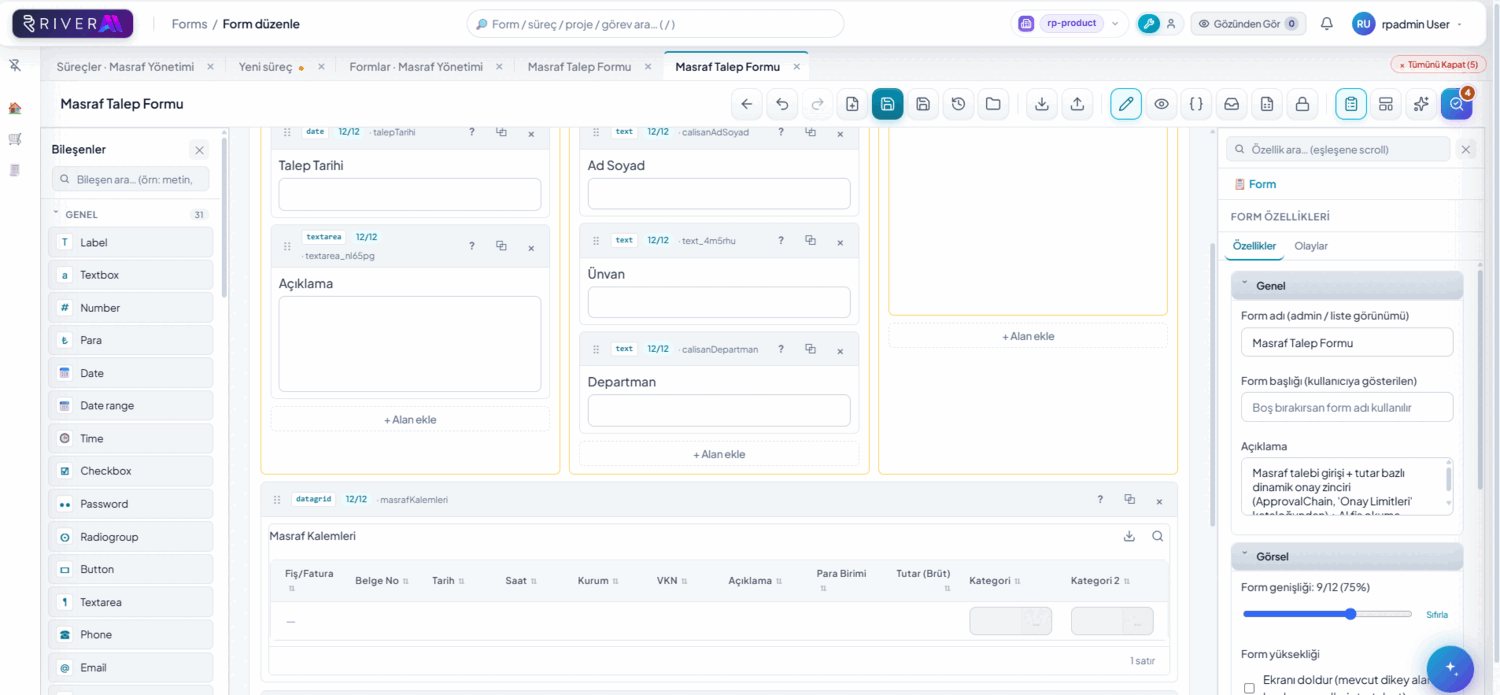
Anyone who can write a formula in Excel can build a calculation in RiverAI, without writing code, using a drag-and-drop visual formula builder. Logic like "Total = Quantity × Unit Price × (1 - Discount)" is built by visually connecting fields and operators instead of typing text into a formula bar; the result becomes a read-only value calculated instantly in another field on the form.
A common example: on a purchasing form, you can build a simple multiplication like "amount incl. VAT = amount × 1.20", or a more layered calculation combining multiple fields and conditions; for instance, applying a different discount rate if the amount exceeds a certain threshold. The formula recalculates the moment one of its linked fields changes; the user doesn't press a "calculate" button; they see the result live as they type.
The formula engine isn't limited to individual fields: it can sum the amounts in each row of a datagrid (a repeating-row field) and show the grand total in a single field. So on an expense form, no matter how many receipt lines the user adds, the "grand total" field always stays correct and up to date, with no separate background calculation or script needed.
Datagrids Manage Files Too
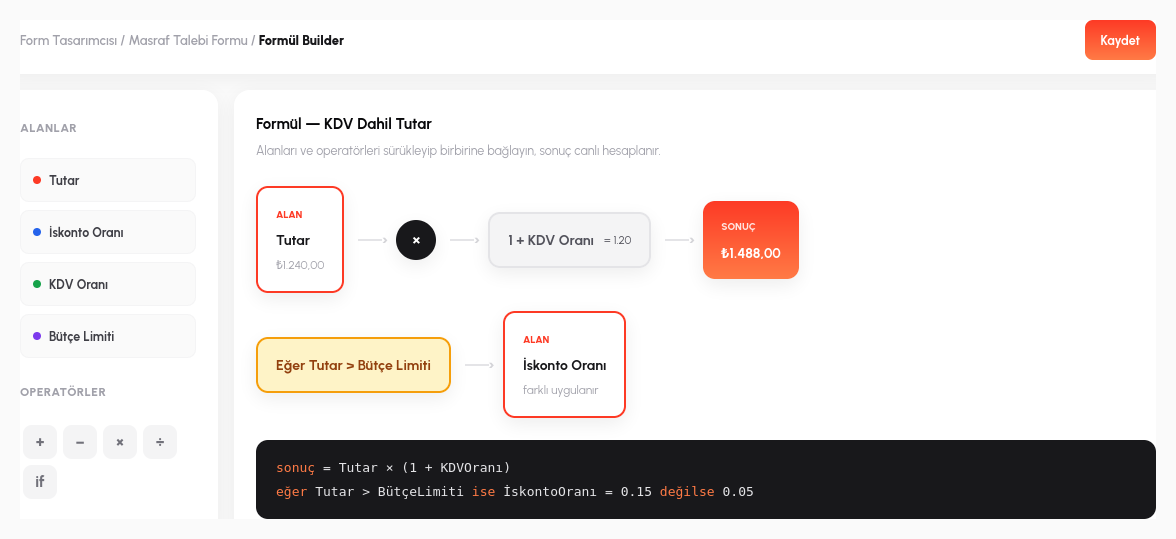
A datagrid (a repeating-row field) is not just a simple "add/remove" table in RiverAI. When a user adds multiple receipt lines to an expense form, each row can carry its own amount, date, category, and file attachment columns; the file column in each row previews the previously uploaded file and offers download, re-upload, and delete actions inside a single cell.
The row count isn't fixed: the user adds as many receipt lines as needed; you don't have to impose a limit like "at most 5 rows" (though you can define one if you wish). The visibility, requiredness, or read-only state of fields in each row is configured without code, based on the value of another field in that row: for example, in a row where "International" is selected in the "category" column, an "exchange rate" column appears automatically and stays hidden in the other rows.
This behavior is the same for single-line fields: a conditional visibility rule applies with the same logic both to an individual field and to a column inside a datagrid row. From the designer's perspective there's no difference: you define once which field appears under which condition, and the RiverAI form engine handles the rest at runtime.
Open, Edit, and Save in the Browser
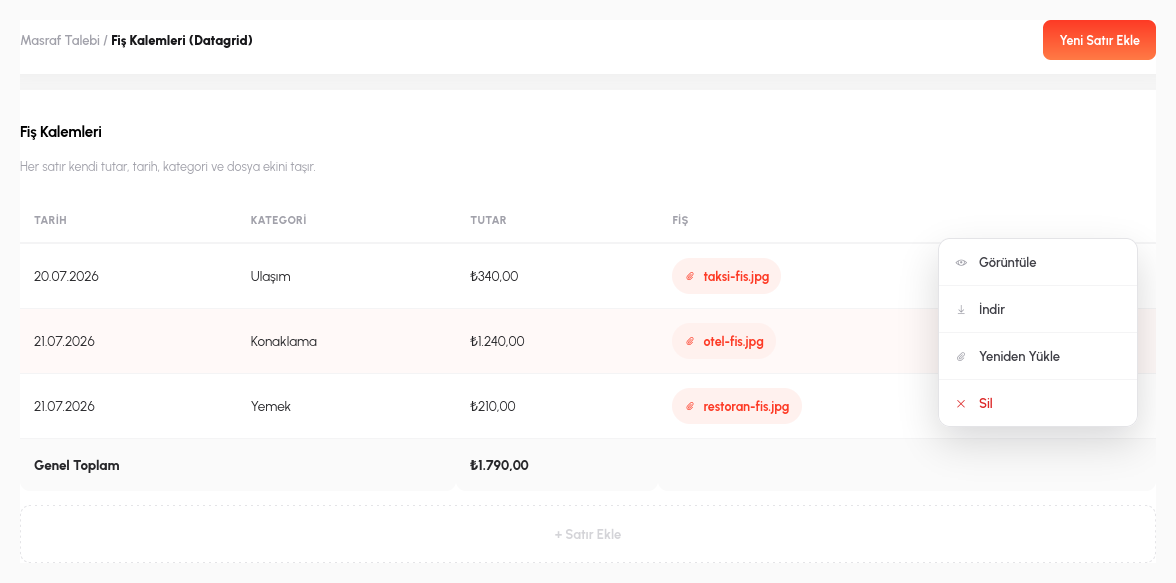
There's no need to download a Word, Excel, or PowerPoint file uploaded from a form or generated from a template and open it on your local computer: with its OnlyOffice integration, RiverAI opens, edits, and saves the file directly in the browser. Microsoft Office doesn't need to be installed on the desktop; filling contract text into a Word template, fixing a cell in an Excel report, or updating a slide in a presentation all happens entirely in the browser tab.
This is especially useful in template-filling scenarios: when a form is submitted, the field data (customer name, amount, date) is automatically placed into a predefined Word template; if needed, the user opens the document in the browser, makes the final touches, and saves; the file is never downloaded, edited by hand, and re-uploaded, so version confusion (which copy is current?) never arises.
The editing session is tied to the form/process record: who changed what and when on the same document can be tracked, and the document always remains part of the related form record; no copies floating around on a separate file server or in email attachments.
- 30+ Field Types: text, number, date, select list, file, e-signature, KPI card, even an embedded dashboard widget, chosen from drag-and-drop ready-made components.
- Conditional Visibility: a field appears or hides instantly based on another field's value, and is no longer required, so the form doesn't get cluttered for the user.
- Visual Formula Engine: anyone who knows Excel builds calculations without writing code; the result recalculates live the moment a linked field changes.
- File-Managing Datagrid: each repeating row can carry its own file attachment; preview, download, re-upload in a single cell.
- OnlyOffice Integration: Word/Excel/PowerPoint files are opened, edited, and saved directly in the browser, without downloading.
An OCR-Enabled Expense Form, Built from Scratch
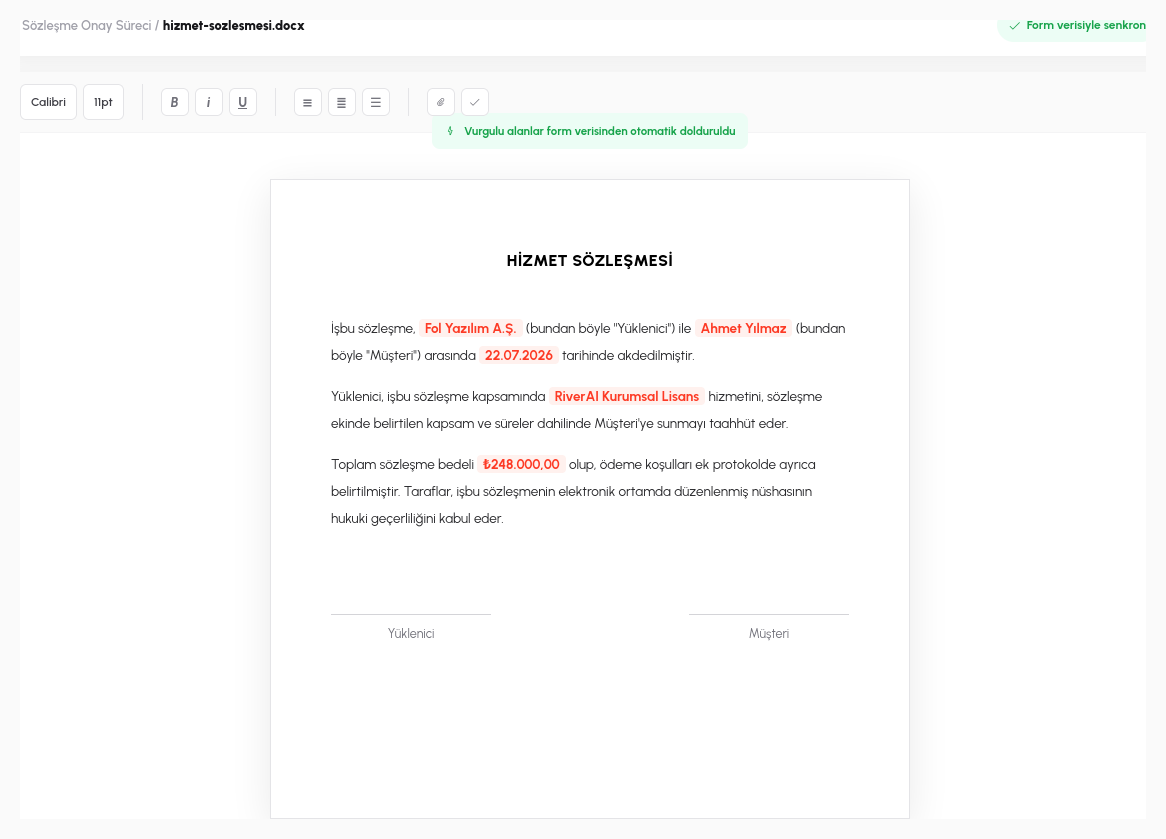
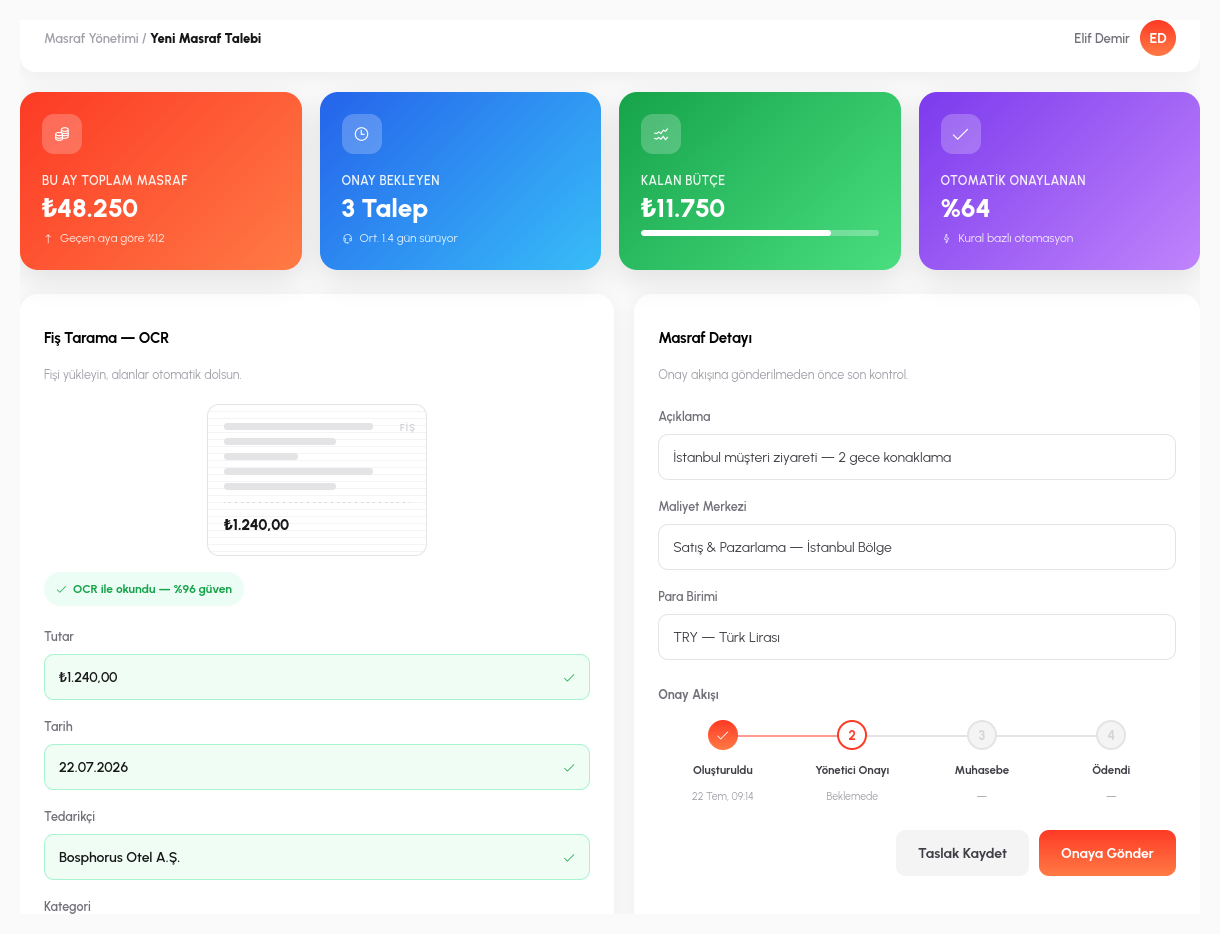
This screen shows how the form designer's ready-made components come together in a single form: at the top, KPI card fields (total expenses this month, number of requests awaiting approval, remaining budget); below, a file/OCR field: when a receipt photo is uploaded, the amount, date, and vendor fields fill in automatically, and the user simply reviews and confirms.
The step indicator you see on the right isn't a separate component either; it's the live status of the process the form is attached to. When the form is saved, wherever the process engine is, the indicator updates automatically; the designer doesn't code this separately; it derives on its own from the steps in the process diagram.
A Leave Request Form with Sliders and Charts
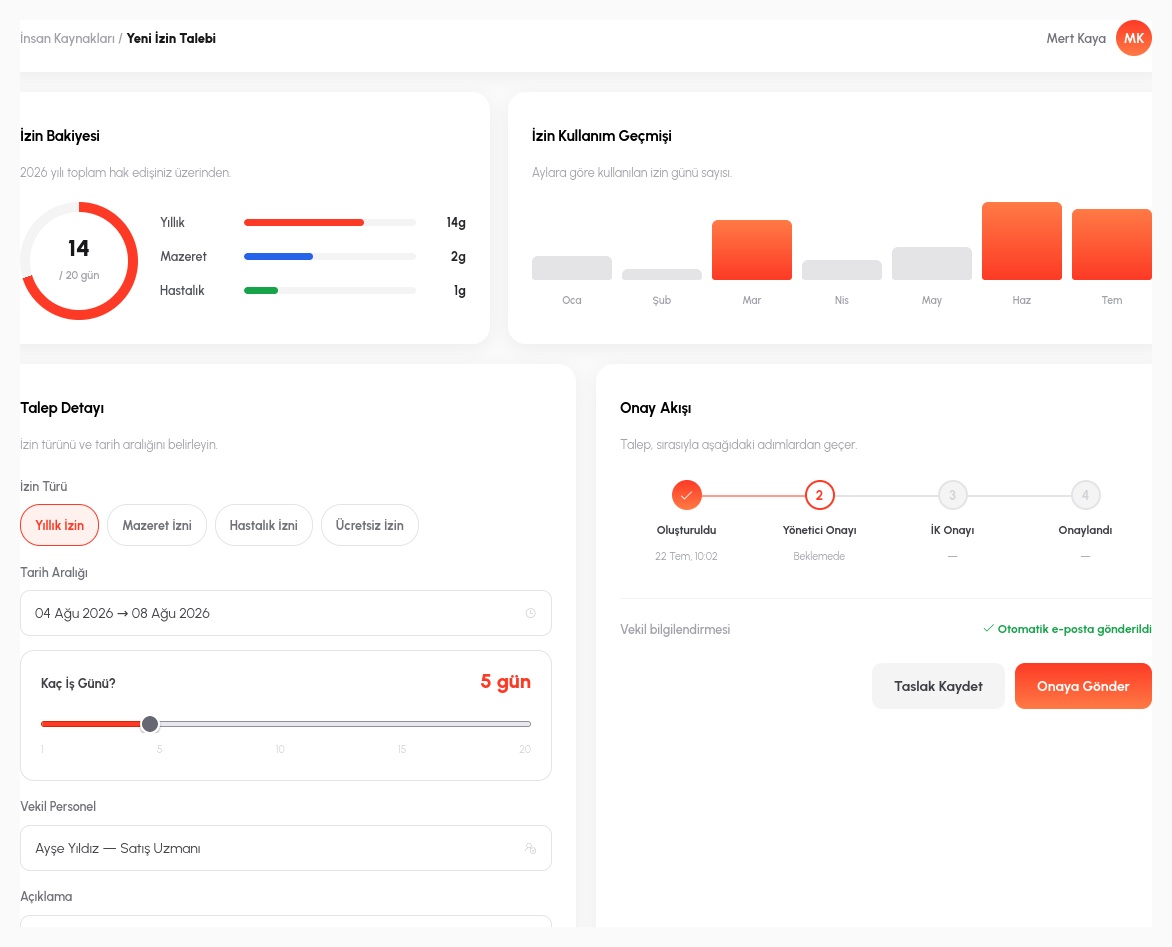
Not every field has to be a text box: here the number of days is shown with a slider field, the remaining leave balance with a circular gauge widget, and the monthly usage history with an embedded mini chart, all placed from the same drag-and-drop component palette, without writing code.
The leave type selection is also presented with a chip selection component instead of a typical dropdown; which option is active is visible at a glance. The substitute employee field is live-bound to a user catalog: as you type, it suggests matching names from the organization's real staff directory.
Let's Build Your Own Form Together
In a 15-minute demo, let's design one of your real forms live in RiverAI.
Request a Demo