
Don't Design It, Describe It:
In RiverAI, process and form design is a dialogue with AI. Type a sentence, upload a screenshot or a hand-drawn flowchart, and the AI produces the first draft for you, and all you do is approve it.
Turn a Photo into a Real, Working Process
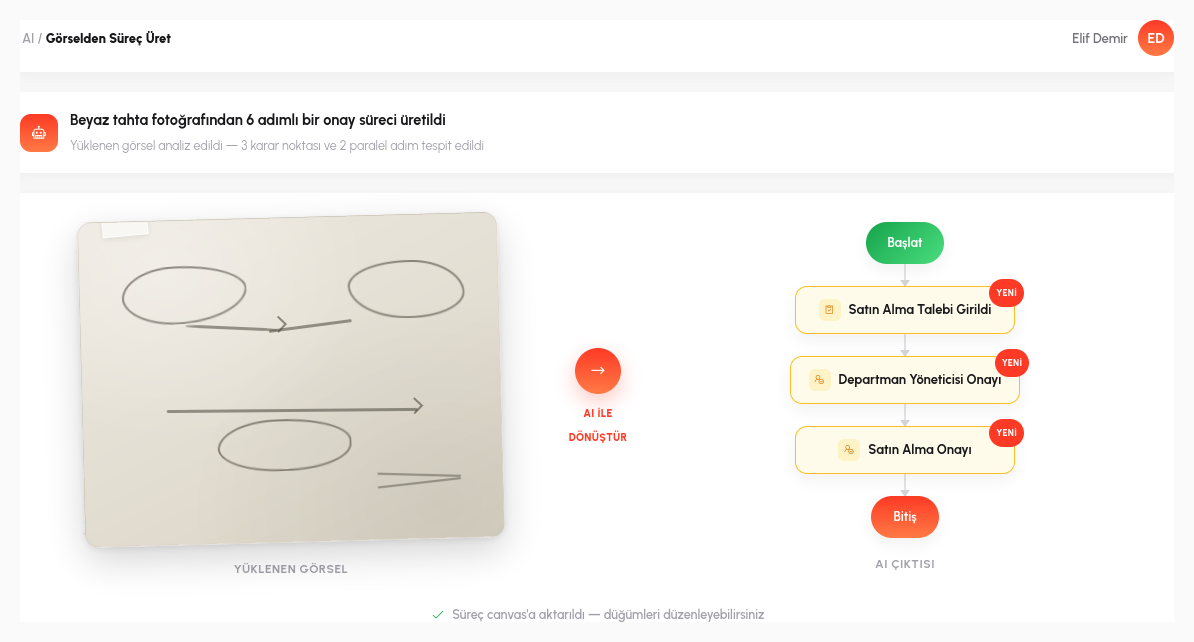
Already have a flowchart? Upload a photo of a whiteboard sketch, a screenshot from an old presentation, a PDF procedure document, or a flow diagram from a competing system. RiverAI reads the image and extracts not the boxes and arrows, but the meaning behind them: it distinguishes which step is an approval, which is a notification, and which is a conditional branch, then places it on the canvas as a real, working process.
The same capability works with text: a natural sentence like "Route the leave request for approval; if the manager approves, send an email; if it's rejected, notify the employee" turns into a working process graph (steps, conditions, and notification nodes included).
The process never starts on a blank canvas: once the AI places the first draft, you pick up right where it left off in the regular designer: adding steps, changing connections, defining approval thresholds. Generation doesn't replace design; it moves your starting point far beyond zero.
When the AI Isn't Sure, It Asks, and You Guide It
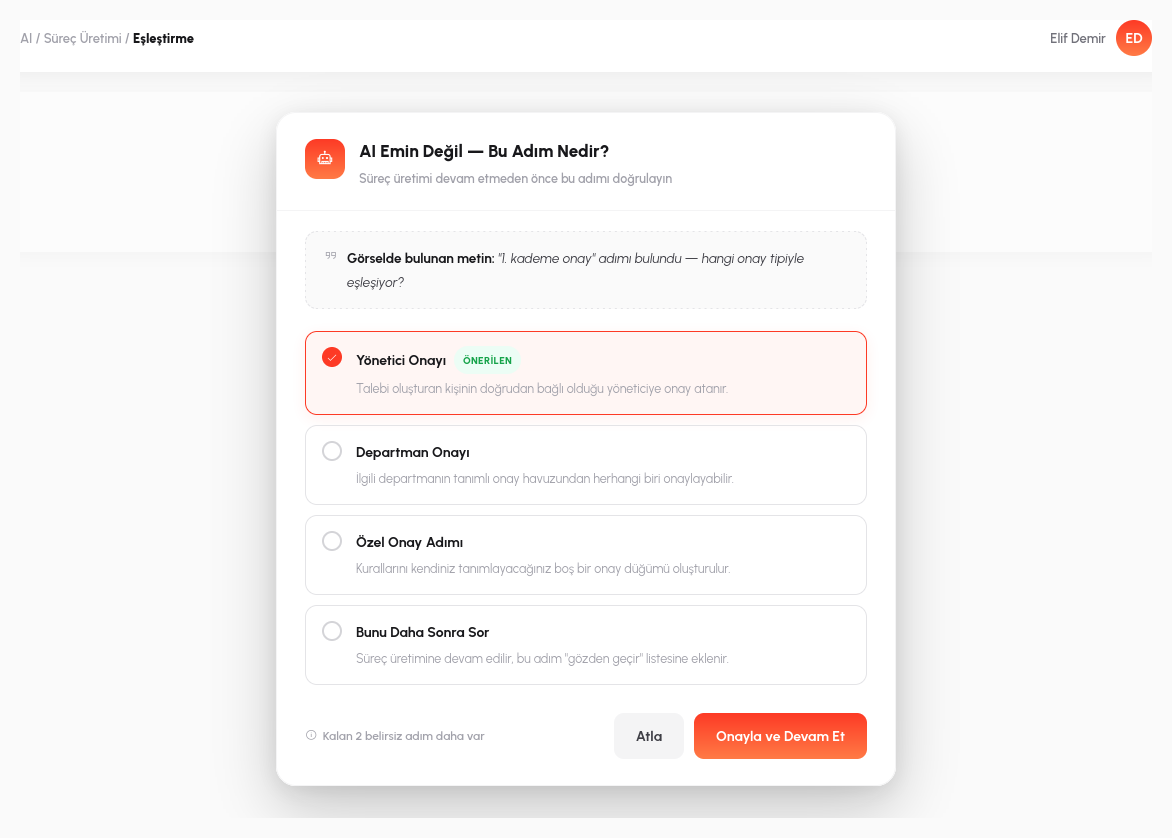
The AI can't always be certain; some steps may remain ambiguous. When that happens, RiverAI doesn't guess and draw the wrong box; it asks you. A mapping table opens and asks "what is this step, really?", and you choose. Generation is not a one-way command; it's a two-way dialogue.
Take an HR process, for example: the same step goes by different names in different organizations: "manager approval" in one, "supervisor approval" in another, "first-level approval" in a third. The first time the AI encounters it, it can't know which approval type it corresponds to, so it asks; you mark it once.
And here's the important part: that choice is never forgotten. The next time the system encounters the same or a similar phrase, it already knows what it means. The more your organization uses RiverAI, the more RiverAI adapts to your organization's language. The mapping table grows into an ever-expanding corporate glossary, shared across departments.
- No Blind Generation: when the AI is unsure about a step, it doesn't guess and draw the wrong box; it asks you through the mapping table.
- Persistent Learning: every answer you give is remembered, building a shared glossary that adapts to your organization's own terminology.
- Not One-Shot Generation: most "AI-powered" tools make you regenerate from scratch when you don't like the result; RiverAI fixes the mistake permanently.
Write a Prompt or Upload a Legacy Screenshot
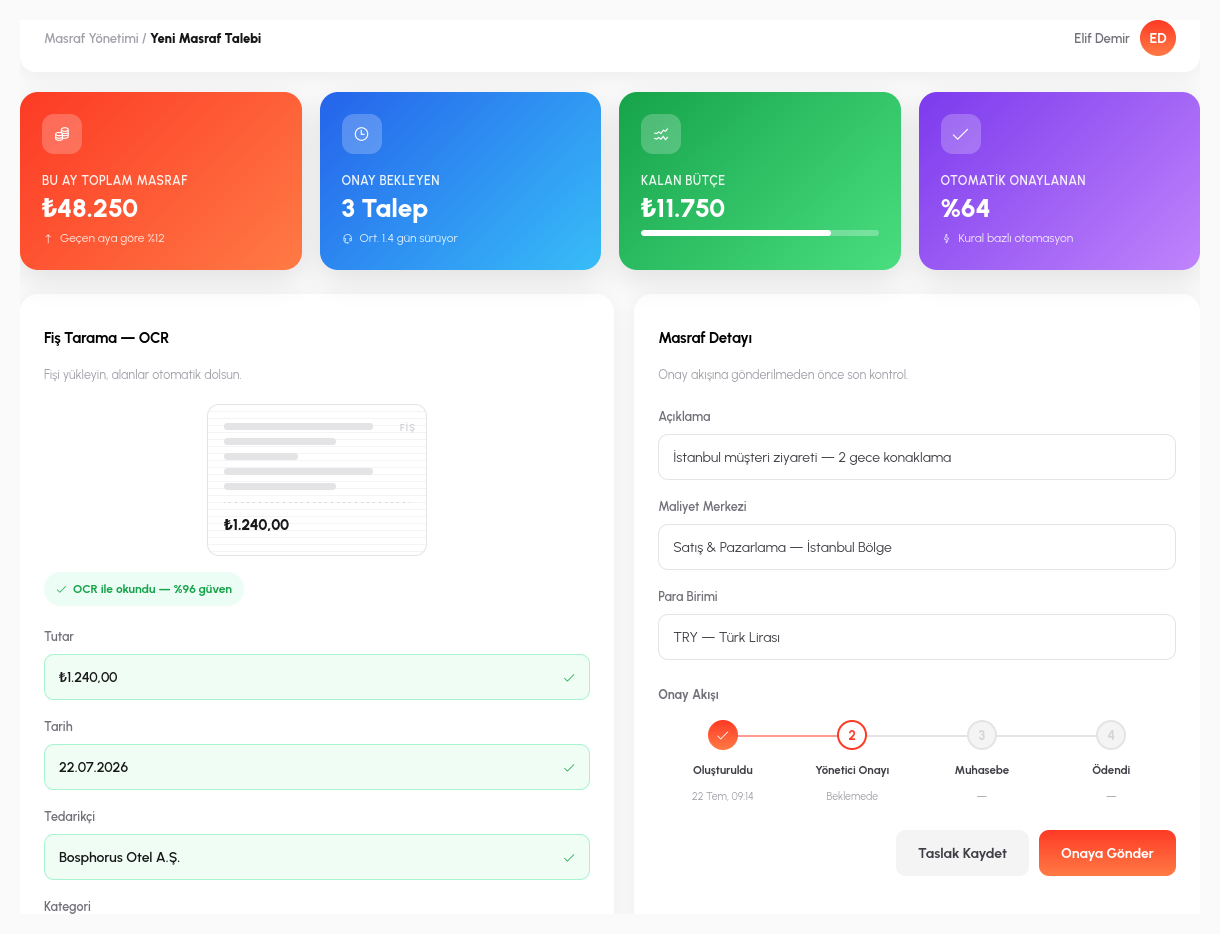
Everything that applies to processes applies to form design as well: write a prompt or upload a screenshot of an old form, and RiverAI proposes the fields, their types, and the layout. A sentence like "An expense request form with amount, currency, receipt photo, expense category, and description fields; add a second approval step when the amount exceeds 5,000 TL" produces the text, number, file/image, and dropdown fields together with the conditional approval logic.
The AI also infers field types: a phrase mentioning "date" becomes a date picker, one mentioning "email" becomes a text field with email validation, and one mentioning "approve/reject" becomes an action button. Required flags, format validation (built-in rules such as email, phone, and national ID), and field ordering all come with the first draft; you only fine-tune.
If you upload a screenshot of a legacy form, the process is the same: the AI extracts field boundaries, labels, and likely data types from the image, maps them onto RiverAI's own form model, and asks you again for any field it can't be sure about.
Transparent Conversion with Confidence Scores
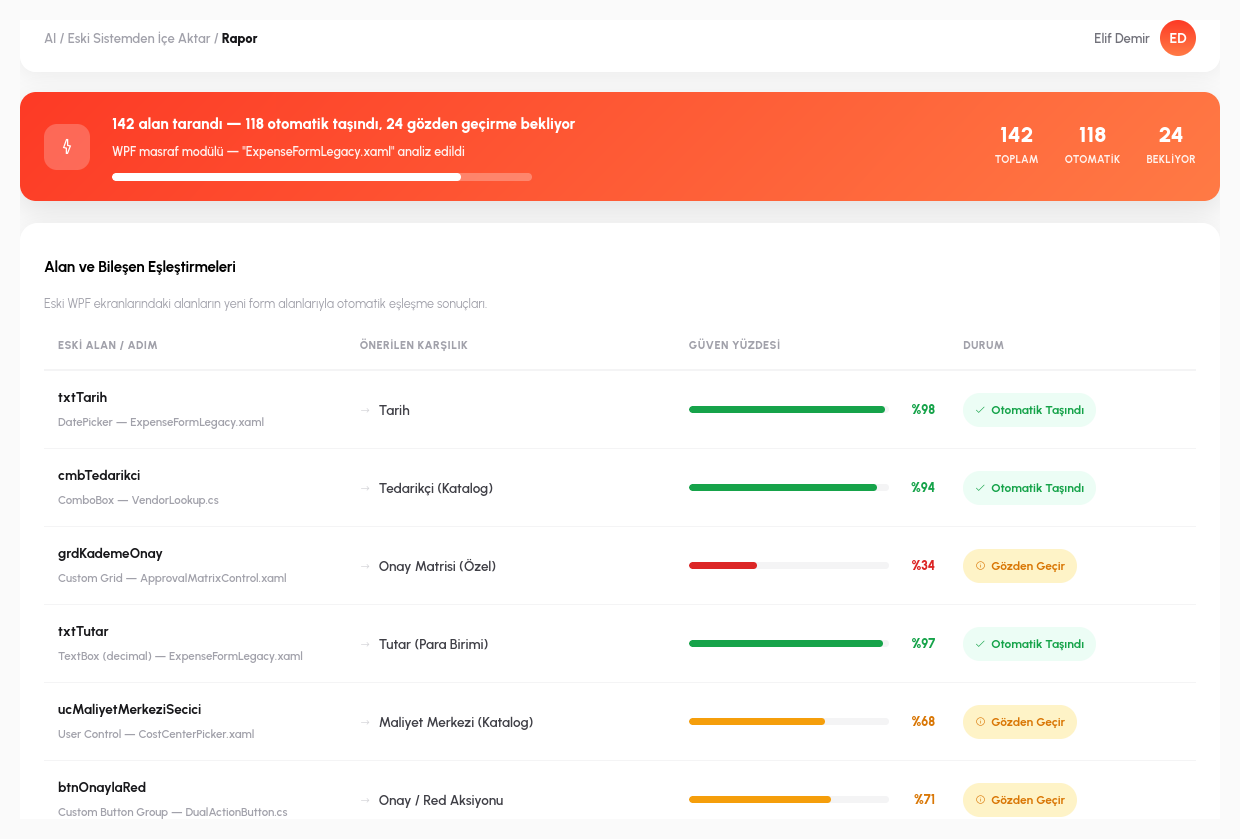
Coming from a legacy desktop application you've used for years? RiverAI reads your old flow files and form definitions, assigns a confidence score to every conversion, and explains in a report what was migrated automatically and what needs manual review.
For example, if a custom "approval matrix" component in an old WPF form has no exact counterpart in RiverAI's form model, the AI flags it with a low confidence score and suggests the closest equivalent; a standard text, date, or dropdown field is migrated automatically with high confidence. Instead of inspecting hundreds of fields one by one, the report lets you focus only on the low-confidence ones.
Wherever it can't be sure, it presents the same mapping table; you correct, the system learns, and the confidence score is recalculated instantly. When you re-analyze a form or process, the decisions you made in the previous round are remembered; you never start from scratch.
And one more thing: your legacy system was probably a Windows application accessed over remote desktop (RDP): reaching the designer meant connecting to a server first, then launching the application. When you move to RiverAI, that dependency disappears entirely: design, everyday use, and approvals all happen end to end in the browser; no VPN, no RDP client, no installation required.
Don't Write SQL, Have It Written
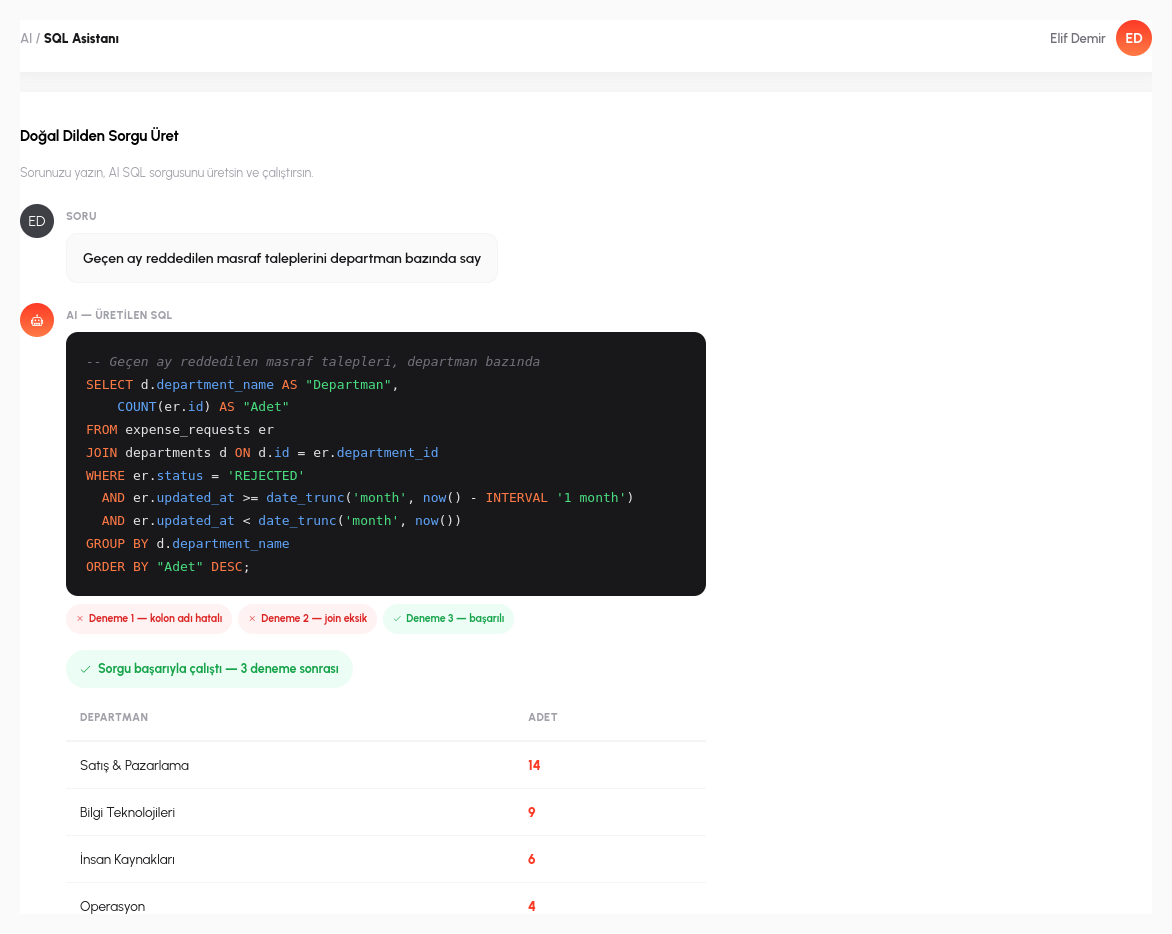
Need a report? You don't even have to write the query: say what you want, and the AI generates the SQL, runs it, and if it hits an error, fixes itself and tries again. A natural request like "Count last month's rejected expense requests by department" becomes a SQL query that finds the right tables, joins them, and groups the results; you see the answer, not the query.
Queries are generated using PostgreSQL schema knowledge (table/column names, relationships); if a syntax error or a wrong column name comes up, the AI reads the error message, corrects the query, and retries automatically; you only ever see the final, correct result. The same capability powers dashboard design when binding live data sources: tell a widget "the status of this month's open requests" and the query builds itself in the background.
Security is never an afterthought: queries the AI generates are constrained to the schemas and row-level permissions that user already has; the AI cannot cross a permission boundary by querying data the user couldn't normally see.
See What AI Can Draw for You
In a 15-minute demo, let's generate your own process or form, live.
Request a Demo